How do you highlight text in Confluence Cloud?
Select the exact words first, then use the toolbar’s combined text-and-highlight color menu to apply a background color.
- Edit the page or live doc. Open the content and enter edit mode.
- Select the text. Drag across only the words or sentence that need emphasis.
- Open the color menu. Choose Text and highlight color in the editor toolbar or floating toolbar.
- Choose a highlight. Pick a color from the highlight palette, not the text-color palette.
- Publish or update. Check the result in context, then save the page.
What is the difference between text color and highlighting?
Text color changes the letters; highlighting adds color behind the letters. They solve different reading problems.
| Format | Best for | Example |
|---|---|---|
| Highlight color | A short warning, decision, or review point that must stand out | A yellow background behind “Decision needed” |
| Text color | A restrained semantic cue within a team convention | Red text for a blocked item |
| Panel or status | A whole message or a repeatable workflow state | An info panel or “In progress” status |
Confluence puts text color and background highlighting in the same menu. If the result changes the characters instead of the area behind them, reopen the menu and choose from the highlight options.
How do you remove highlighting?
Select the highlighted text, reopen Text and highlight color, and choose the default or no-highlight option. Then update the page.
If pasted content keeps an unwanted background, first try clearing the highlight through the toolbar. For a larger cleanup, paste the passage as plain text and reapply only the formatting you need.
Why can’t I find the highlight control?
The most common causes are being outside edit mode, not selecting text, looking at a different toolbar rollout, or editing a content type with different controls.
- Confirm that you can type on the page.
- Select text before looking for the floating toolbar.
- Check the toolbar overflow menu on a narrow screen.
- Do not confuse page text with text inside a whiteboard element.
- Ask an administrator whether an app or editor policy changes the available options.
How should teams use highlights accessibly?
Use highlighting sparingly and never make color the only carrier of meaning.
- Add a word such as Warning, Decision, or Blocked.
- Keep enough contrast between the text and its background in both light and dark themes.
- Reserve a small, documented palette for repeatable meanings.
- Use a status, panel, or heading when the entire block matters.
For the current editor behavior, see Atlassian’s official Format text and format with the toolbar documentation.
Related Confluence guides
Starting with a Markdown draft? Use the Markdown to Confluence converter to preview headings, lists, and tables before pasting, then apply background highlights in Confluence.
Preparing a longer Confluence document?
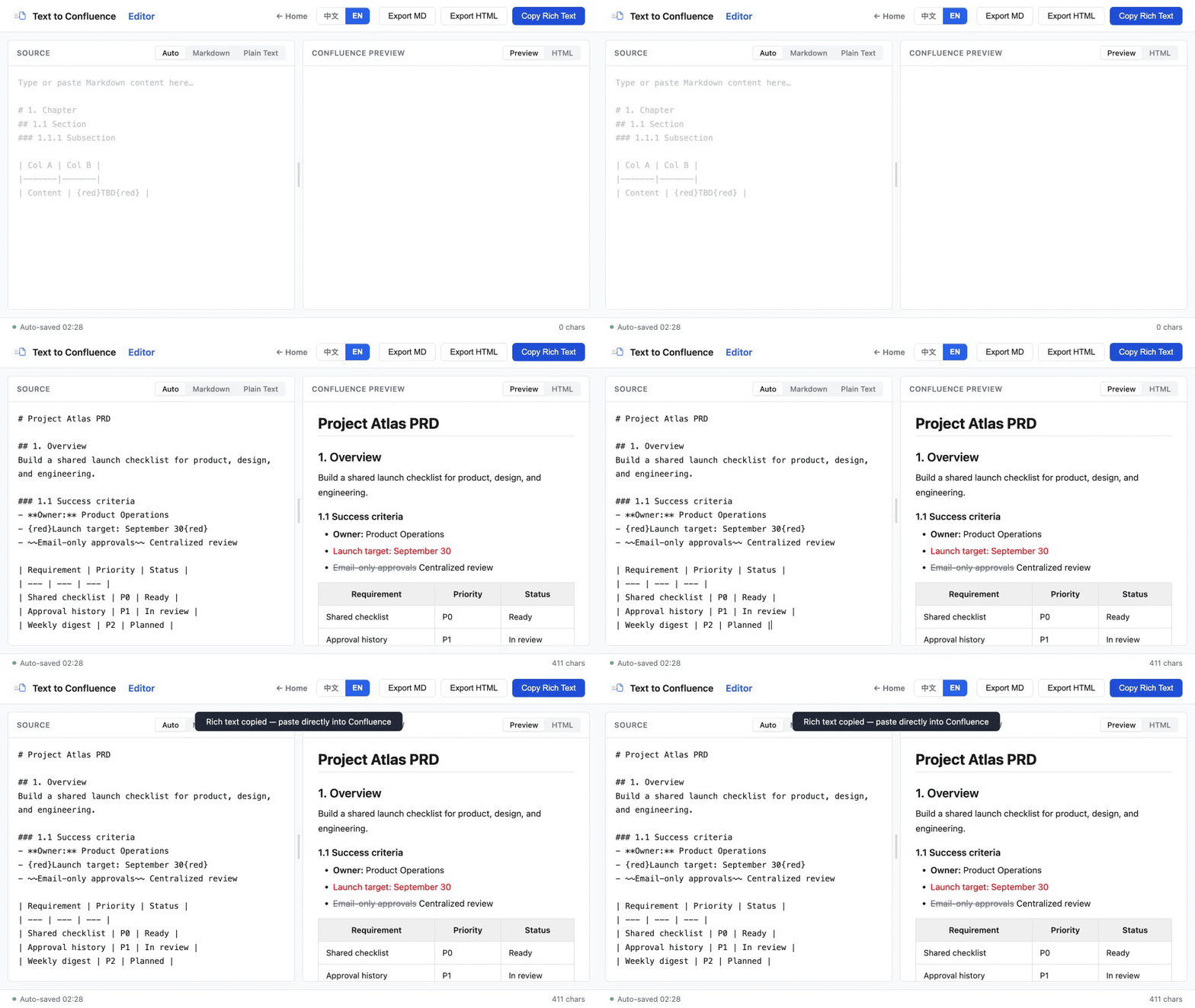
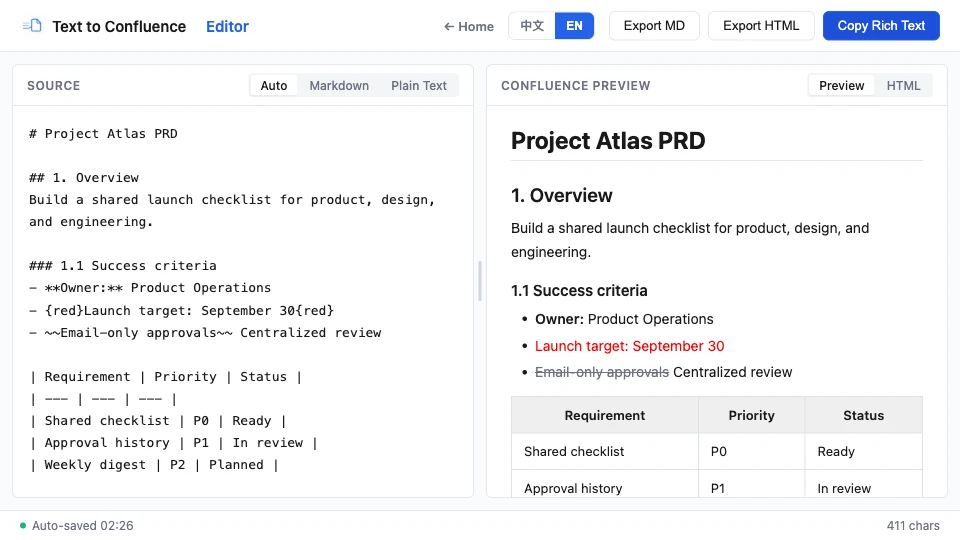
Use Text to Confluence Editor to structure headings, tables, lists, links, and red emphasis before you paste the result into Confluence.
Open Text to Confluence Editor →Last reviewed against current Atlassian Cloud documentation.