Method 1: Direct paste (simplest)
Copy your Markdown text and paste it directly into the Confluence page editor. Confluence Cloud auto-converts basic Markdown syntax including headings, bold, italic, lists, links, and code blocks.
This is the fastest method for simple documents. Confluence recognizes the most common Markdown patterns and converts them on paste. However, it works best with clean, simple Markdown — complex tables or deeply nested lists may not convert cleanly.
When to use direct paste
- Your document is under 500 words
- It has no tables or only simple tables
- It uses basic formatting (headings, bold, italic, lists, links)
- You need to paste quickly and can fix minor issues manually
Method 2: The /markdown slash command (most reliable)
Type /markdown in the page body, paste your Markdown into the panel, review the preview, and click Insert. This is the most reliable native method for complex Markdown.
The /markdown slash command is Confluence's dedicated Markdown import tool. It gives you a preview before inserting, so you can catch formatting issues before they end up in your page.
How to use it
- In the Confluence page editor, type
/markdown - Select "Markdown" from the dropdown
- Paste your Markdown text into the panel
- Review the preview to check tables, lists, and formatting
- Click "Insert" to add the content to your page
|---|---|) and consistent column counts, it will convert cleanly.Method 3: Free converter tool (best for complex docs)
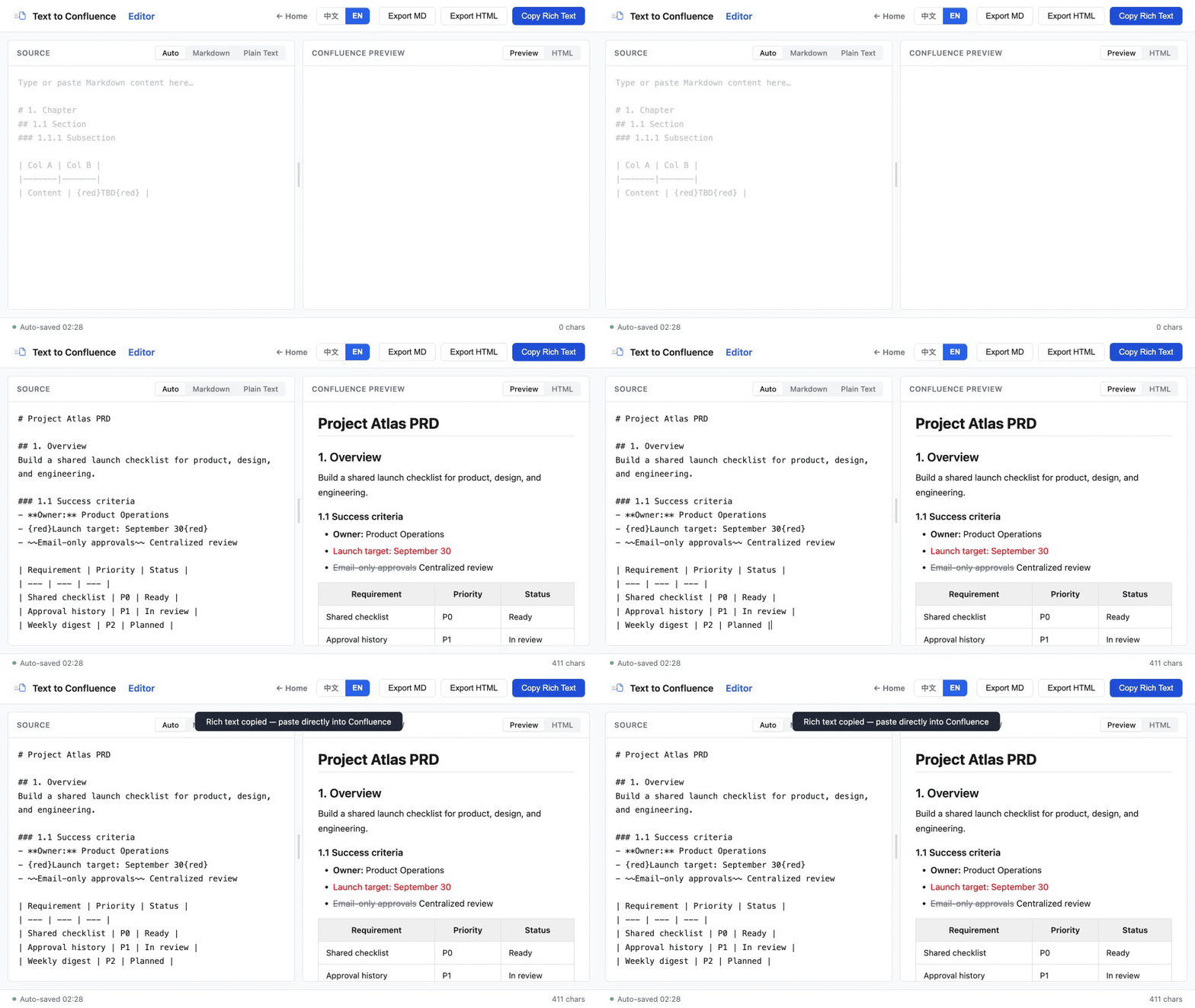
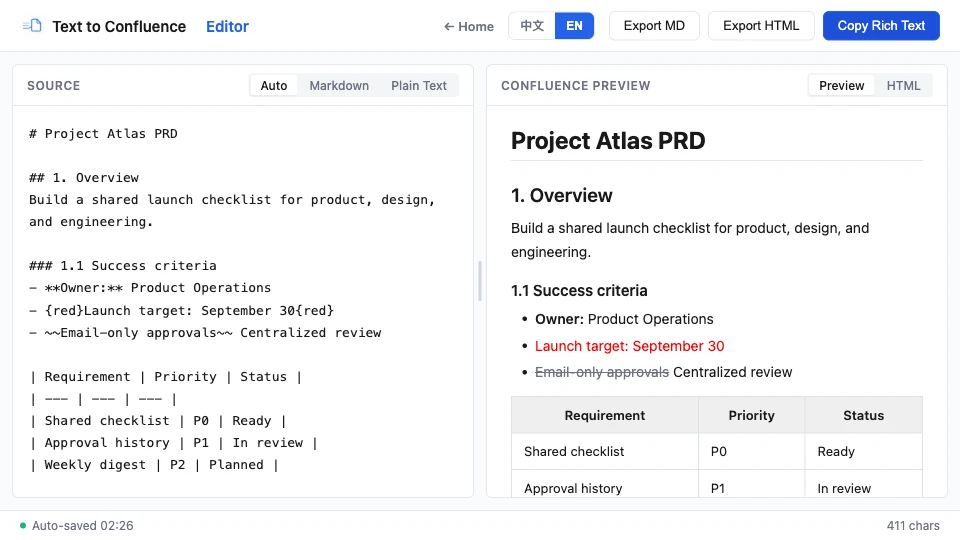
For documents with many tables, nested lists, or mixed formatting, use a free online Markdown-to-Confluence converter. Paste your Markdown, check the live preview, fix any issues, then copy the rendered rich text into your page.
A dedicated converter tool is the best option for long or complex documents. It gives you a live preview of how your Markdown will render, lets you fix issues before pasting, and preserves table structure better than direct paste.
How it works
- Open the Markdown to Confluence converter
- Paste your Markdown into the left panel (or upload a .md file)
- Check the live preview on the right
- Fix any formatting issues (especially tables and nested lists)
- Click "Copy" to copy the rendered rich text
- Paste into your Confluence page
This method is especially useful for:
- Documents with multiple tables
- Long documents (1000+ words)
- Documents with mixed content (tables + code blocks + lists)
- Batch conversion of multiple files
What converts cleanly vs. what doesn't
Basic Markdown syntax (headings, bold, italic, lists, links, code blocks) converts cleanly with all three methods. Tables, complex nested lists, and mixed content work best with the /markdown command or a converter tool.
Converts cleanly with direct paste
# Heading 1through###### Heading 6**bold**and*italic*- bullet listsand1. numbered lists`inline code`and``` code blocks ```> quotes[links](url)---dividers
Needs /markdown command or converter
- Tables (especially with merged cells or complex alignment)
- Deeply nested lists (3+ levels)
- Mixed content (tables + code blocks + lists in the same document)
- Documents with custom HTML or special characters
Common issues and fixes
Tables render as plain text with pipes
This is the most common issue. It happens when the Markdown table syntax is incorrect. Check that:
- You have a separator row with dashes (
|---|---|) - Every row has the same number of columns
- There are no extra spaces or pipes at the start/end of rows
If the table still doesn't convert, use the /markdown command or a converter tool instead of direct paste.
Nested lists flatten to a single level
This happens when indentation is inconsistent. Use consistent indentation (2 or 4 spaces per level) and avoid mixing tabs and spaces. If the list still flattens, simplify the nesting or use headings instead.
Code blocks lose indentation
Make sure you're using triple backticks (```) for code blocks, not single backticks. Single backticks are for inline code only. For multi-line code, always use triple backticks.
Pasted content has extra line breaks
This usually happens when copying from PDFs or web pages with complex CSS. Use "Paste as plain text" (Cmd/Ctrl+Shift+V) and reformat manually, or use a converter tool to clean up the content first.
Best practices for reliable conversion
- Start with clean Markdown — Use a text editor with Markdown preview to check your syntax before pasting
- Test with your most complex content — If your document has tables, test the table conversion first before pasting the whole document
- Use the right method for the job — Direct paste for simple docs, /markdown for tables, converter for complex docs
- Review the preview before inserting — The /markdown command and converter tools both show a preview. Use it to catch issues before they end up in your page
- Keep a Markdown source — Save your original Markdown file so you can re-convert if you need to update the page later
Need to convert a complex document?
Paste your Markdown into the free converter, check the live preview, and copy the formatted result into Confluence. No account or install needed.
Try the free converter →