Basic text formatting (bold, italic, underline, strikethrough)
Select your text, then click the toolbar button or use a keyboard shortcut. Bold is Cmd/Ctrl + B, italic is Cmd/Ctrl + I, underline is Cmd/Ctrl + U, and strikethrough is Cmd/Ctrl + Shift + S.
Every formatting option in Confluence Cloud works the same way: select the text first, then apply the format. You can also set the format before you type — click the button, then start typing, and the formatting applies to new text.
When to use each format
- Bold — use for emphasis, mini-headings within a section, or drawing attention to key terms
- Italic — use for tone shifts, foreign words, or titles of works
- Underline — use sparingly; it can be confused with links. Better for highlighting responsibility assignments
- Strikethrough — use to show changes, completed items, or humor
Headings and page structure
Click the "Normal text" dropdown in the toolbar to select Heading 1 through Heading 6. Use Heading 1 for the page title, Heading 2 for major sections, and Heading 3 for subsections.
Headings are the most important formatting tool in Confluence because they create the page structure. A well-structured page with clear headings is easier to scan, easier to navigate with the table of contents macro, and ranks better in search results.
Heading best practices
- Use only one Heading 1 per page (the title)
- Don't skip levels (go from H2 to H3, not H2 to H4)
- Keep headings short and descriptive
- Use headings to break up long pages every 3-5 paragraphs
Text colors and highlighting
Click the "A" button in the toolbar to choose from 18 built-in text colors. For highlighting, select your text and use the highlight button in the same dropdown.
Text colors are useful for status indicators, team branding, or visual categorization. However, use them sparingly — too many colors make a page hard to read and can cause accessibility issues for colorblind users.
Code blocks and inline code
Use the </> button in the toolbar for code blocks, or wrap text in backticks (`) for inline code. Code blocks support syntax highlighting for 20+ programming languages.
Code blocks are essential for technical documentation. They preserve formatting, add syntax highlighting, and make code easier to copy.
How to insert a code block
- Click the
</>button in the toolbar - Paste your code
- Select the programming language from the dropdown (top-right of the code block)
- Choose whether to show line numbers and enable wrapping
For inline code (variable names, file paths, short commands), wrap the text in single backticks: `variableName`
Tables
Insert a table with the table button in the toolbar, or type /table and press Enter. You can add rows, columns, and header cells from the table toolbar.
Tables are the most powerful formatting tool in Confluence for structured data. They support sorting, column resizing, and cell merging.
Table tips
- Use the first row as a header row (enables sorting)
- Keep tables under 10 columns for readability
- For wide tables, enable "Full width" in table properties
- Use cell background colors to highlight status or priority
Lists and checklists
Use the bullet or numbered list buttons in the toolbar, or type - for bullets and 1. for numbered lists. For checklists, use the action item button.
Lists are the most common formatting element in Confluence. Use bulleted lists for unordered items, numbered lists for sequential steps, and action items (checklists) for tasks that need tracking.
Nested lists
Confluence supports nested lists up to 6 levels deep. Use Tab to indent and Shift+Tab to outdent. However, avoid going deeper than 3 levels — deeply nested lists are hard to read and often indicate the content should be restructured with headings instead.
Keyboard shortcuts
Press Cmd/Ctrl + / to see all available keyboard shortcuts. The most useful ones for formatting are: Bold (Cmd/Ctrl+B), Italic (Cmd/Ctrl+I), Underline (Cmd/Ctrl+U), Strikethrough (Cmd/Ctrl+Shift+S), and Headings (Cmd/Ctrl+1 through 6).
Keyboard shortcuts are the fastest way to format text once you memorize them. The full list is available in the Confluence help menu, but here are the essentials:
Cmd/Ctrl + B— BoldCmd/Ctrl + I— ItalicCmd/Ctrl + U— UnderlineCmd/Ctrl + Shift + S— StrikethroughCmd/Ctrl + 1-6— Heading 1 through 6Cmd/Ctrl + Shift + M— Code blockCmd/Ctrl + Shift + ,— SubscriptCmd/Ctrl + Shift + .— Superscript
The Markdown method (faster for long documents)
Confluence Cloud auto-converts basic Markdown when you paste it. Headings, bold, italic, lists, links, and code blocks all convert automatically. For complex documents with tables, use the /markdown slash command or a free converter tool.
If you're writing a long document (like a PRD, technical spec, or meeting notes), typing Markdown is often faster than clicking toolbar buttons. Confluence recognizes the most common Markdown syntax and converts it as you paste.
What converts automatically
# Heading 1through###### Heading 6**bold**and*italic*- bullet listsand1. numbered lists`inline code`and``` code blocks ```> quotes[links](url)---dividers
What needs the /markdown command
Tables, complex nested lists, and mixed content sometimes don't convert cleanly with direct paste. For these, use the /markdown slash command:
- Type
/markdownin the page body - Paste your Markdown into the panel
- Review the preview
- Click Insert
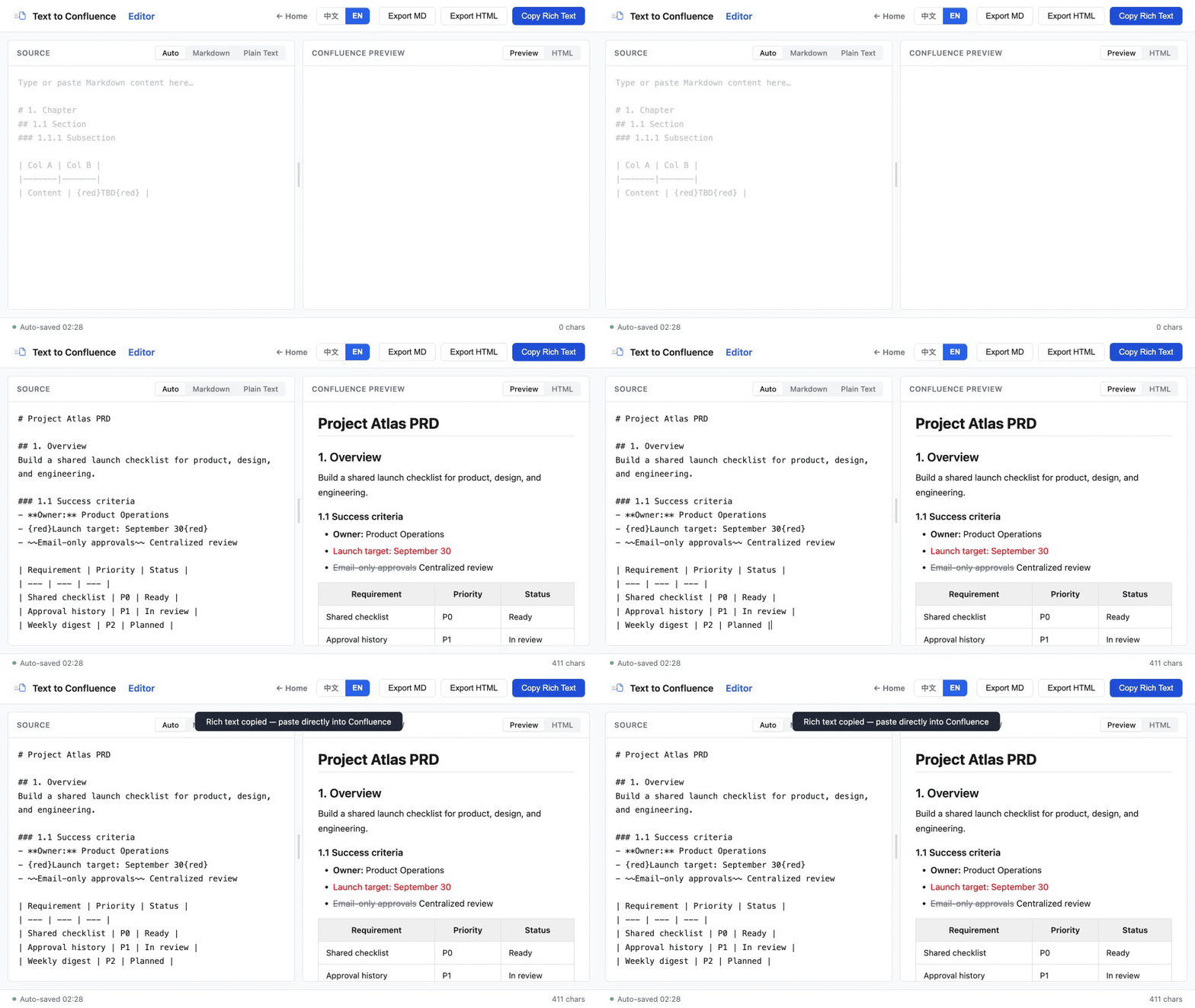
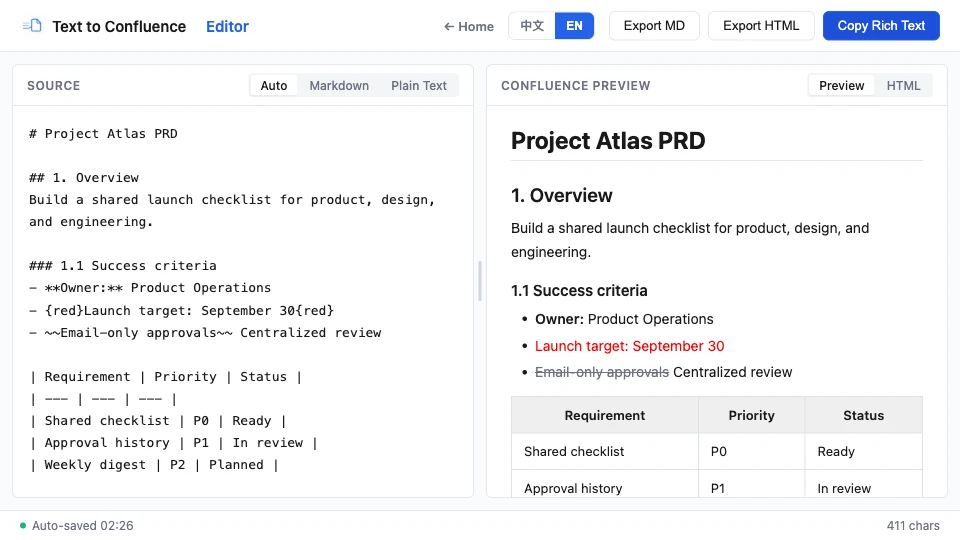
Working from a Markdown draft? Use the Markdown to Confluence converter to preview headings, lists, and tables before copying the formatted result into Confluence.
Common formatting issues and fixes
Pasted content loses formatting
This usually happens when copying from PDFs, Word, or web pages with complex CSS. The fix is to use "Paste as plain text" (Cmd/Ctrl+Shift+V) and reformat manually, or use a converter tool to clean up the content first.
Tables render as plain text with pipes
This means the Markdown table syntax is incorrect. Check that you have the separator row with dashes (|---|---|) and that every row has the same number of columns.
Code blocks don't preserve indentation
Make sure you're using a code block (the </> button), not inline code. Inline code doesn't preserve line breaks or indentation. For multi-line code, always use a code block.
Headings don't appear in the table of contents
Check that you're using actual heading formats (Heading 1-6), not just bold text. The table of contents macro only recognizes properly formatted headings.
Need to format a long document?
Paste your Markdown or plain text into the free editor, check the live preview, and copy the formatted result into Confluence. No account or install needed.
Try the free converter →