Convert source content without reformatting by hand
Learn the four-step workflow, supported structures, table patterns, and privacy model.
Read the publishing guide →Convert Markdown into rich text for your Confluence page
Paste your Markdown, review the rendered headings, tables, lists, and strikethrough, then use Copy Rich Text and paste into the Confluence editor. Conversion runs in your browser with no account or file upload. Check the final page before publishing.
From rough draft to published Confluence page in under a minute.
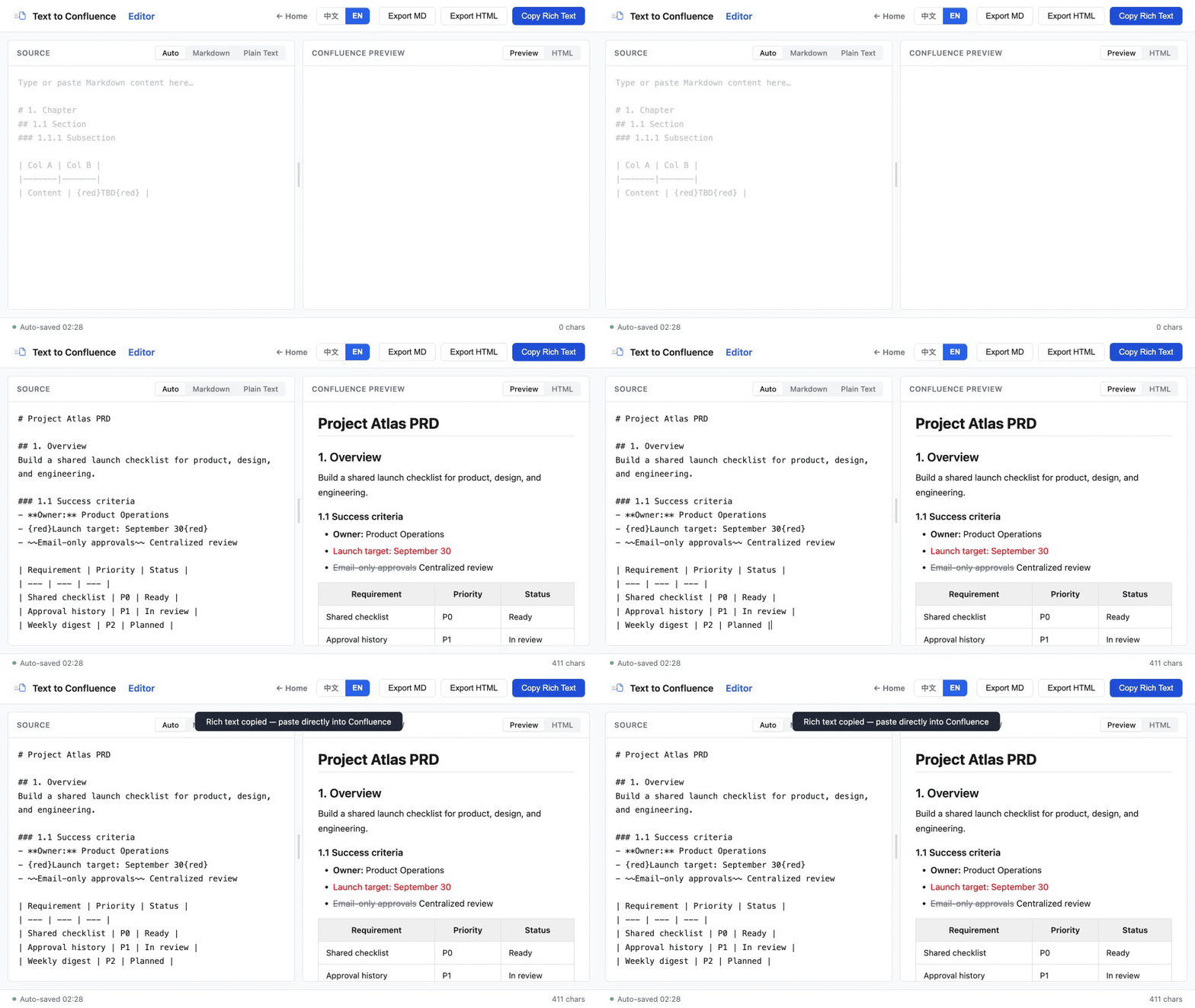
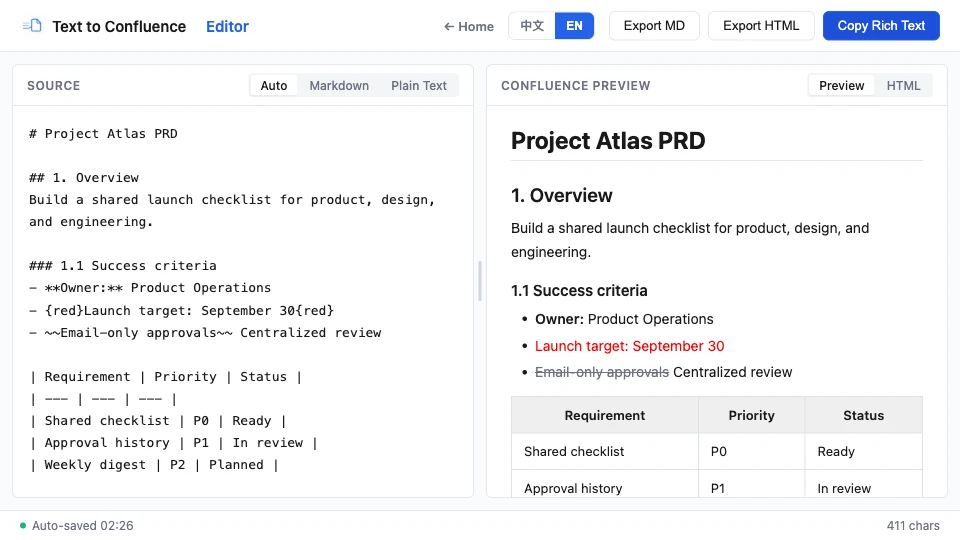
Type Markdown on the left, or paste plain-text notes — even rich text copied from Confluence.
The right pane renders Confluence-standard formatting instantly — headings, tables, and red text at a glance.
Hit “Copy Rich Text” to put formatted HTML on your clipboard, or export as HTML / Markdown.
Paste into the Confluence editor — grey headers and red highlights are preserved exactly. Publish.
Below is the fully functional editor — no download required, ready to use.
The embedded and standalone editors are identical; the standalone page is great for distraction-free full-screen editing — bookmark it for quick access.
Fully separate writing from formatting, so you can focus on the product definition itself.
Convert plain text or Markdown to Confluence rich text — and parse Confluence content back into structured text. A complete two-way loop.
Edit on the left and see Confluence styles rendered on the right in milliseconds. What you see is what you get — no more paste-and-check loops.
Chapter numbers, key-value pairs, and pasted tabular data are automatically structured, turning rough notes into a spec-ready PRD.
Paste content copied straight from Confluence and it converts back to Markdown automatically — sync platform edits to your local draft with ease.
Grey centered headers, red emphasis, H1–H4 heading levels, strikethrough, and links all survive the trip back to Confluence.
A pure front-end, single-file tool. No install, works without internet. Your documents stay in your browser and never leave your device.
Start with the step-by-step Markdown tutorial, then use the team workflow guide when you need a repeatable process for PRDs and shared documentation.
Learn the four-step workflow, supported structures, table patterns, and privacy model.
Read the publishing guide →Use a practical copy, preview, and publish routine for recurring product documentation.
Read the team workflow →Use the converter above for a complete Markdown draft. The guide below covers source preparation, a PRD example, and fixes for table and list formatting.
This converter creates rich text to paste into the Confluence editor. It does not generate legacy Confluence wiki markup, upload attachments, or create native macros. Add mentions, Jira elements, and page permissions inside Confluence.
Use one preview-and-copy loop: prepare the source, inspect the rendered structure, resolve ambiguous syntax, and publish the rich-text result.
Clear heading levels, separator-based tables, and consistently indented lists produce the most predictable result.
# Product requirements
## Problem
## Proposed solution
### Acceptance criteria| Requirement | Owner | Status |
| --- | --- | --- |
| Export flow | Product | In review |
| Permission check | Engineering | Ready |- Confirm the user journey
- Add validation for empty input
- Test the copy-and-paste resultKeep a blank line before and after tables or lists in mixed documents. This makes each block easier to parse and review.
A lightweight PRD works well when context, user story, and acceptance criteria each have their own heading.
# Feature: Bulk import

## Context
What problem are we solving?

## User story
As a product manager, I want to import a document so that I can publish it quickly.

## Acceptance criteria
- [ ] The source can contain headings and tables
- [ ] The preview matches the intended formatting
- [ ] The final content can be pasted into a wiki pageStart by removing ambiguity in the source: verify table separators and column counts, then simplify inconsistent or deeply nested lists.
Check that the separator row is present and every row has the same number of columns.
Use consistent indentation for child items. Simplify deeply nested lists before publishing when the hierarchy is not essential.
For Markdown shortcuts while typing directly in Confluence, see Atlassian’s available Markdown commands.
Paste a real draft, inspect the preview, and copy the rich-text result when it looks right.
Open Text to Confluence Editor →Starting from unformatted notes? Use the Text to Confluence Editor. For an editable document outline, get the Confluence PRD template.
Last reviewed .
在上方转换器中处理整篇 Markdown 草稿。以下指南介绍源稿准备、PRD 示例,以及表格和列表的格式修正。
本工具生成可粘贴到 Confluence 编辑器的富文本,不生成旧版 Confluence Wiki 标记、不上传附件,也不会创建原生宏。请在 Confluence 中添加真实的成员提及、Jira 元素和页面权限。
使用一次“预览并复制”的闭环:准备源稿、检查渲染结构、消除含糊语法,再发布富文本结果。
清晰的标题层级、带分隔行的表格和缩进一致的列表,可以得到最可预测的结果。
# 产品需求
## 问题
## 解决方案
### 验收标准| 需求 | 负责人 | 状态 |
| --- | --- | --- |
| 导出流程 | 产品 | 评审中 |
| 权限检查 | 研发 | 就绪 |- 确认用户路径
- 增加空输入校验
- 测试复制粘贴结果在混合文档中,建议在表格或列表前后各保留一个空行,便于解析和检查每个内容块。
轻量 PRD 可以把背景、用户故事和验收标准分别放在独立标题下,既方便审阅,也便于发布。
# 功能:批量导入

## 背景
我们要解决什么问题?

## 用户故事
作为产品经理,我希望导入文档,以便快速发布。

## 验收标准
- [ ] 源稿可包含标题和表格
- [ ] 预览符合预期格式
- [ ] 最终内容可以粘贴到知识库页面先消除源稿中的歧义:确认表格分隔行和列数,再简化缩进不一致或层级过深的列表。
检查是否存在分隔行,并确认每一行的列数一致。
对子项使用一致缩进。如果层级不是必要信息,发布前应简化过深的列表。
在 Confluence 中直接输入 Markdown 时,可参考 Atlassian Markdown 命令文档。
粘贴一份真实草稿,检查预览,确认无误后复制富文本结果。
打开 Text to Confluence Editor →从未排版的笔记开始?使用 Text to Confluence Editor 文本编辑器。需要文档框架,可获取 Confluence PRD 模板(英文)。
最近审核:。
Everything you might want to know about Markdown to Confluence Editor.
{red}...{red} to render Confluence red text — perfect for TBD items and change notes. The first table row automatically becomes a grey centered header, and ~~text~~ produces strikethrough.